Blog

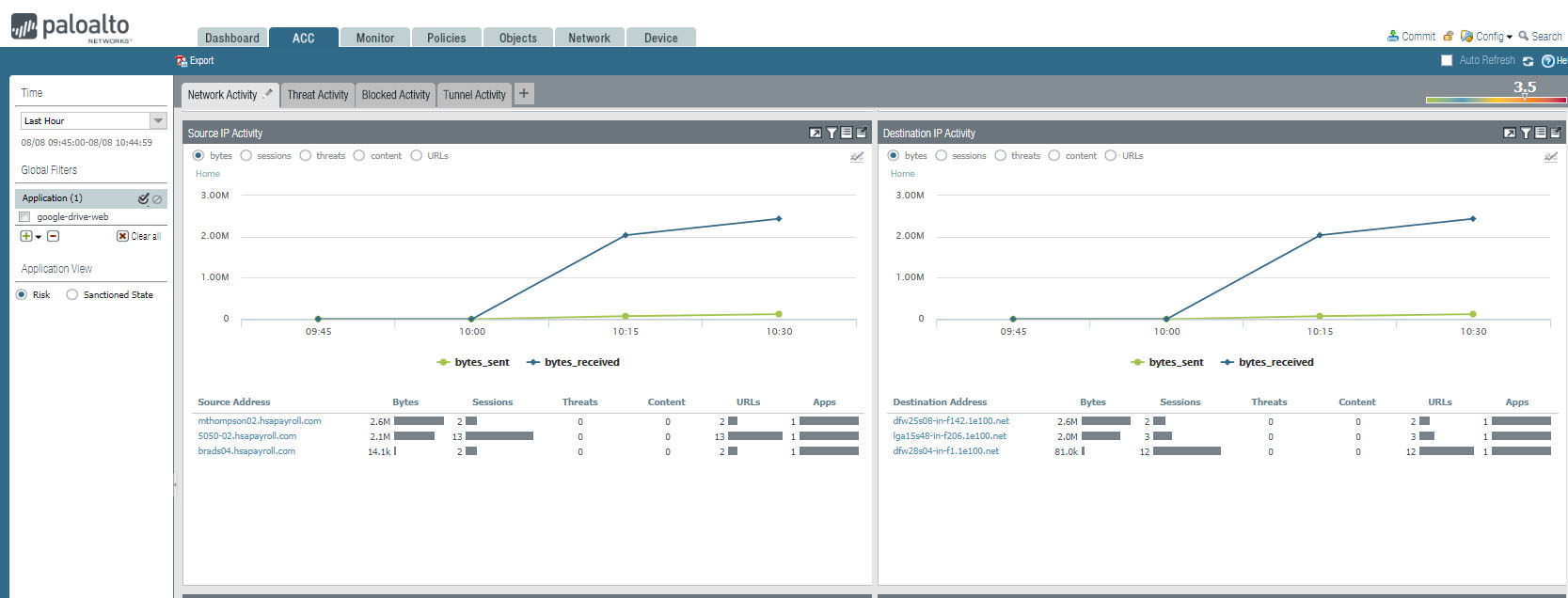
Network Activity under Palo ACC

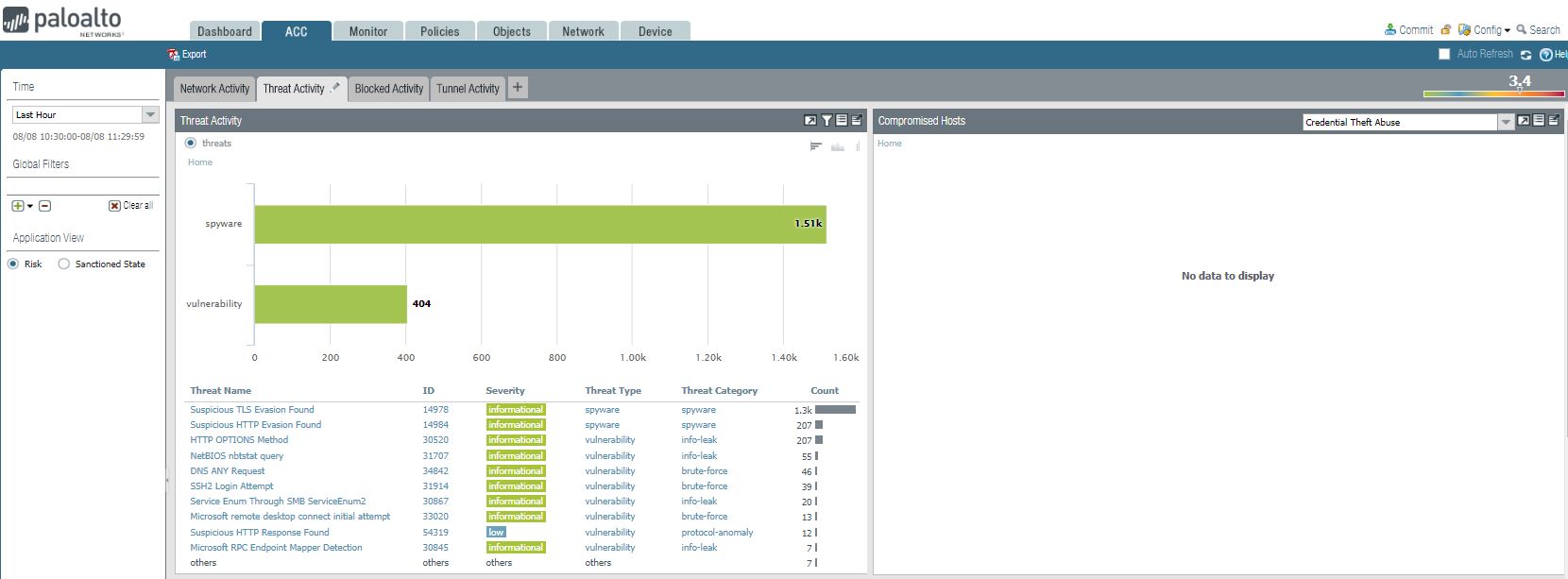
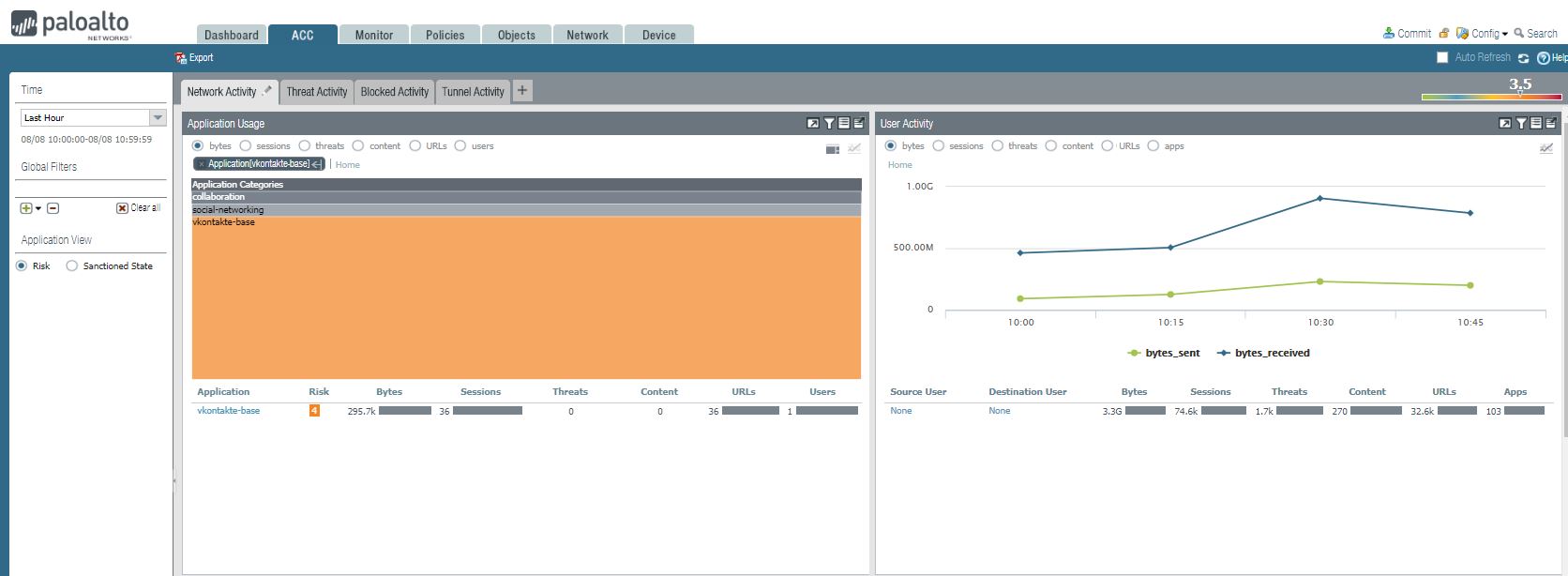
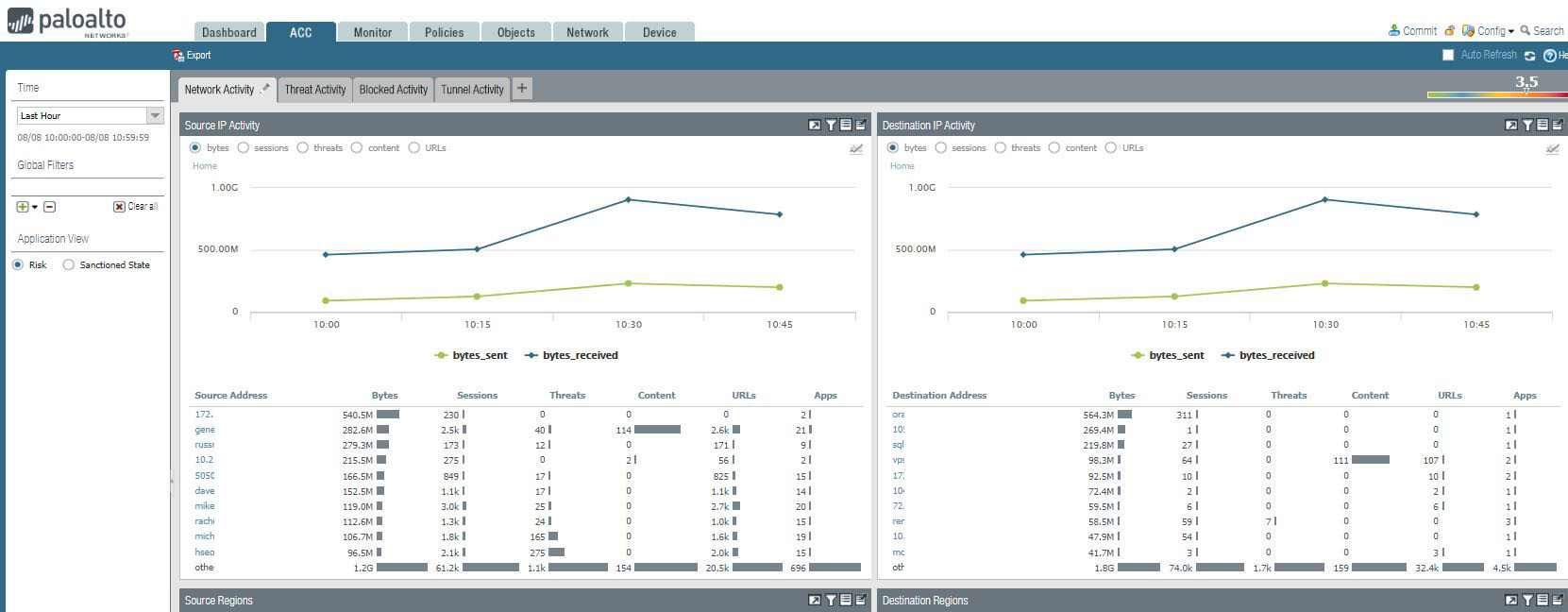
From Palo ACC screen, you can view these information:
1. Application Usage such as Application, Risk Bytes, Session, Threats URLs and users. user Activity such as Source User, Destination User, Bytes, Sessions, Threat, URLs, and Apps.

2. Source IP Activity shows Source address or DNS information.

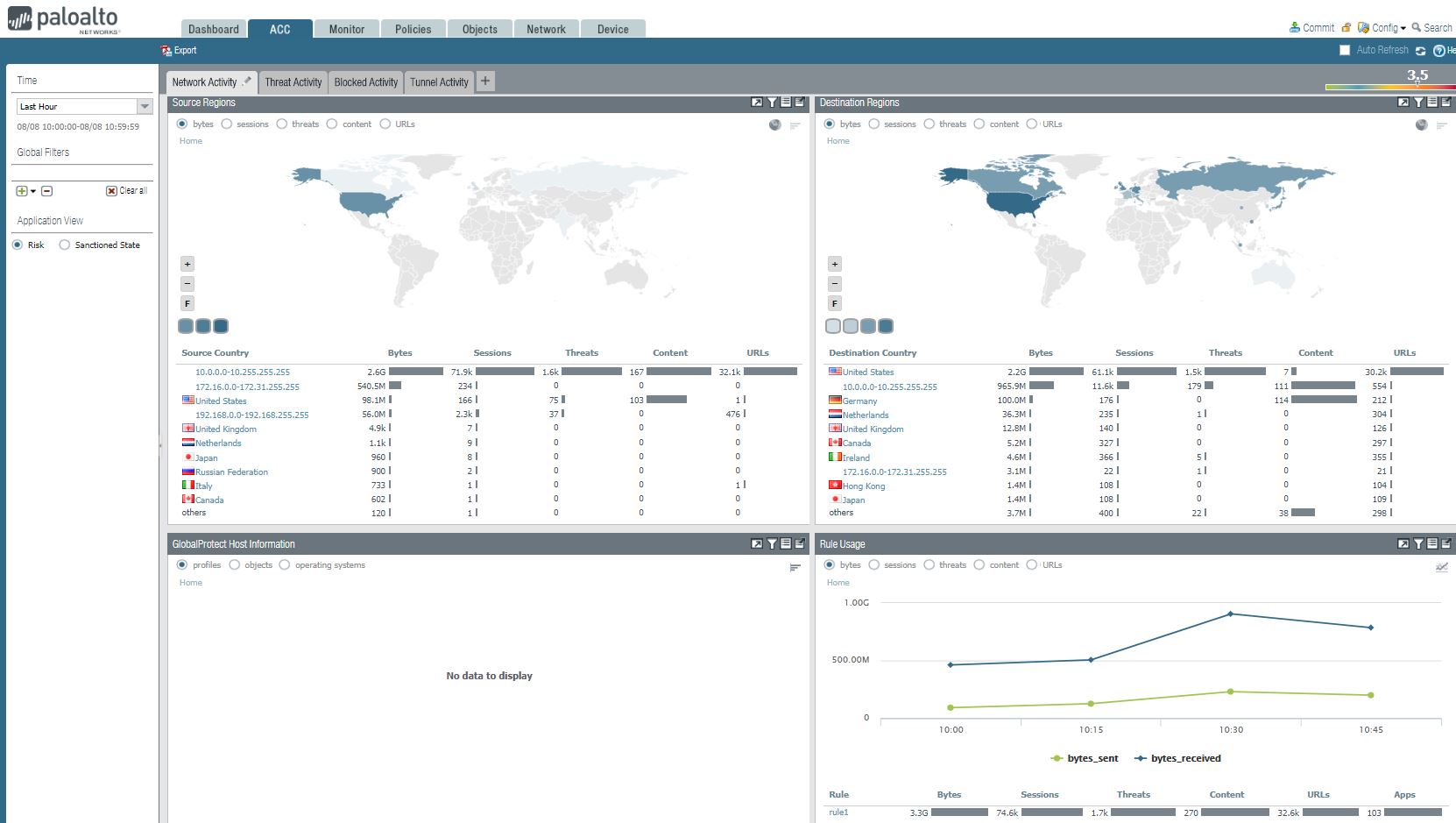
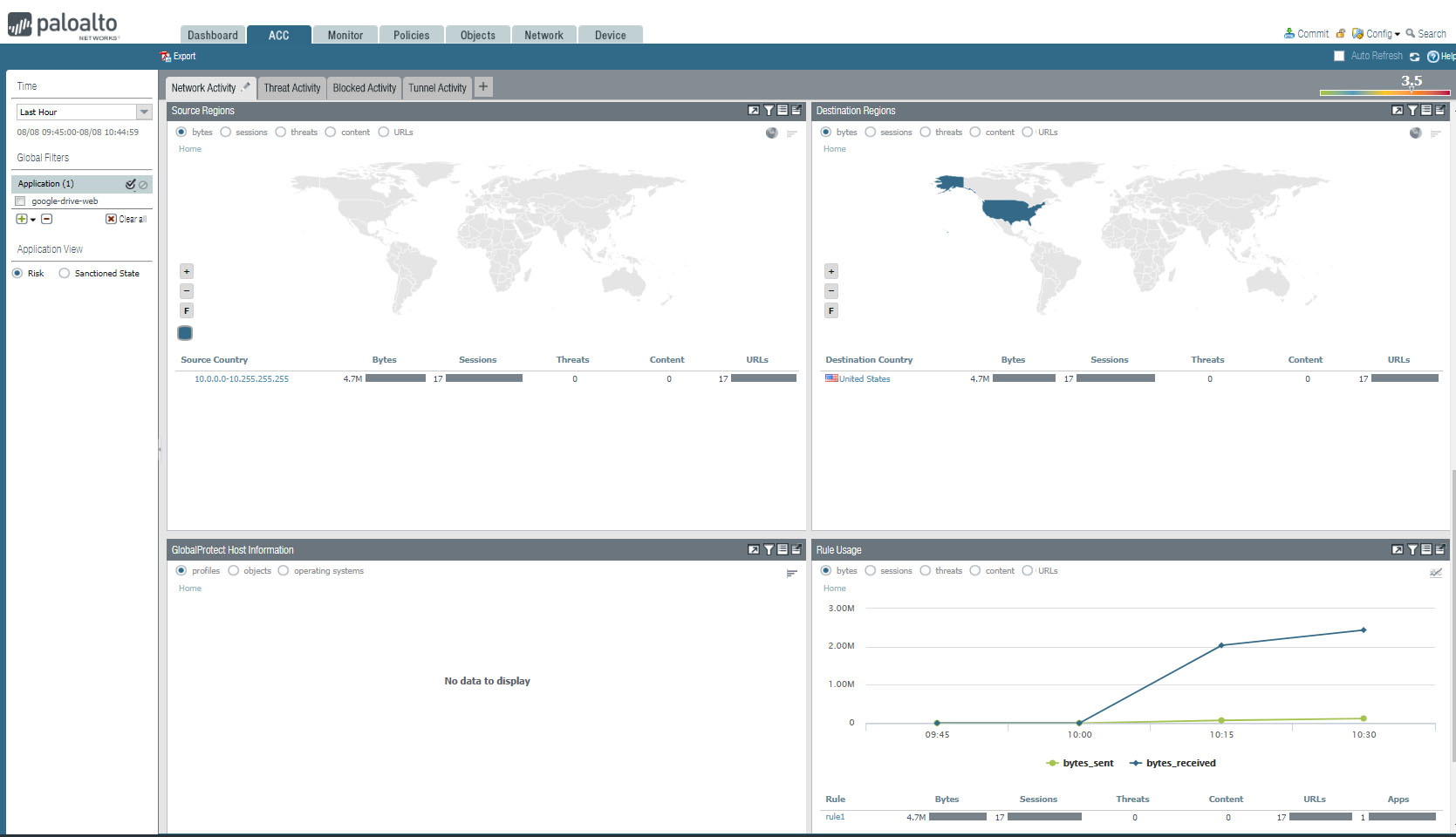
3. Network Activity also shows these information: Source Regions, Destination Regions, GlobalProtection Host Information, and Rule Usage.

Overview of Paloalto Dashboard

After login Palo, you will have Dashboard looks like this:
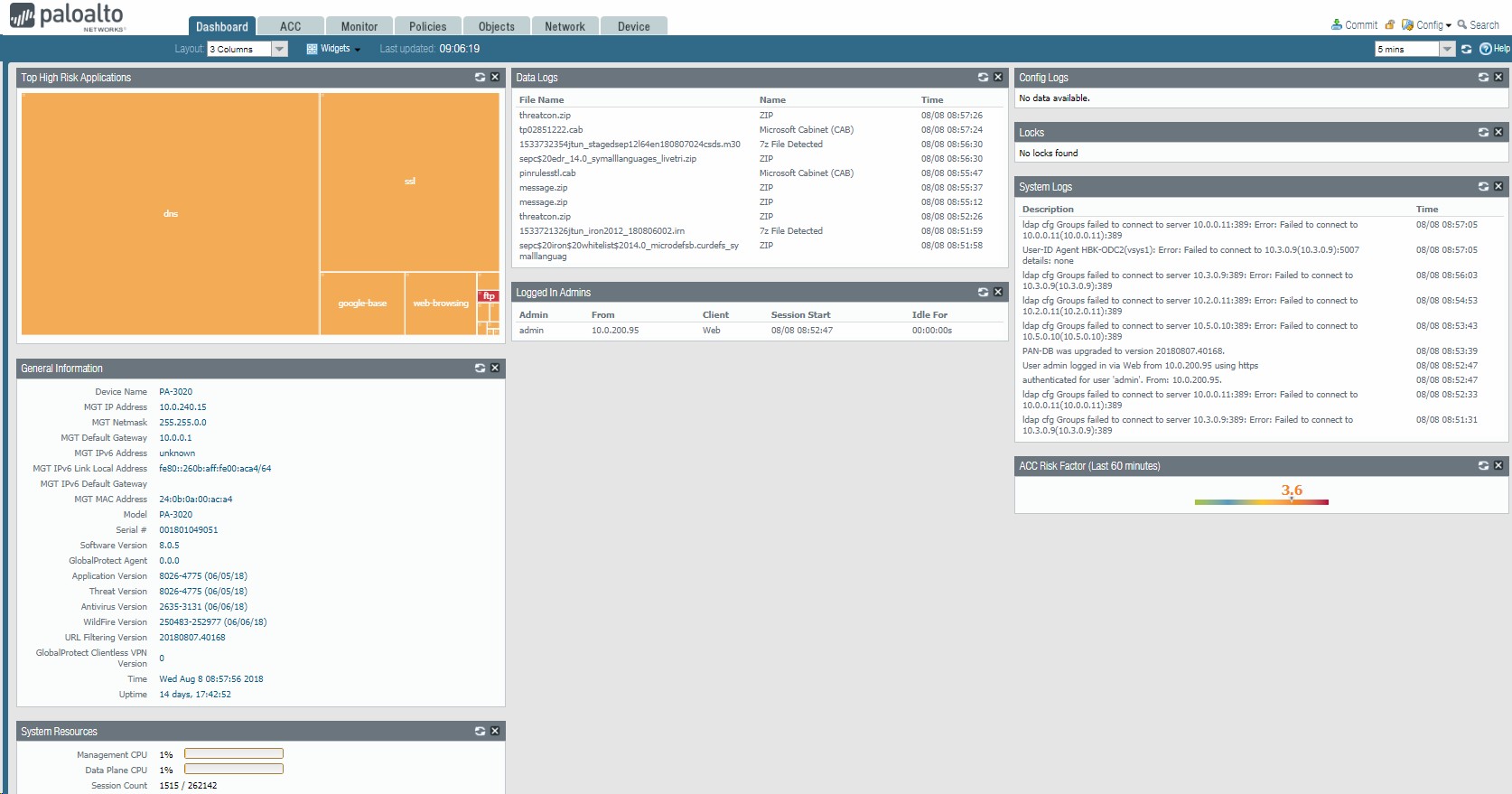
1. You can view Top High Risk Applications and General information such as device IP address, default gateway, Serial #, Software version, time and system resources.
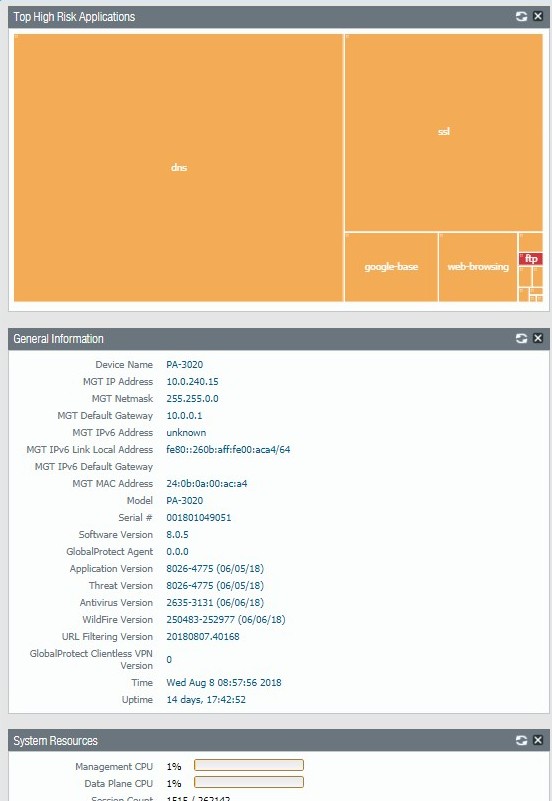
If you click High Risk Applications, it will popup Network Activity. You can High Risk App Usage, user Activity.
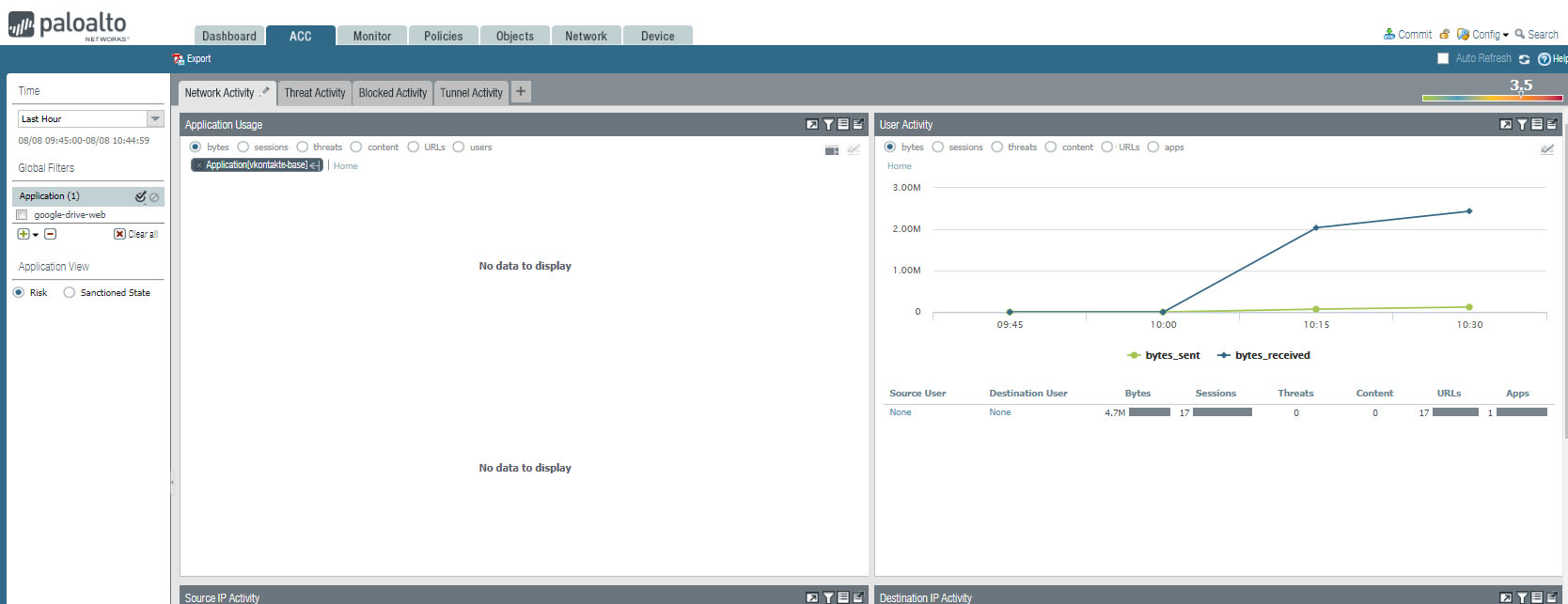
You can also view Source IP Activity, Destination IP Activity, Source regions, Destination Regions.
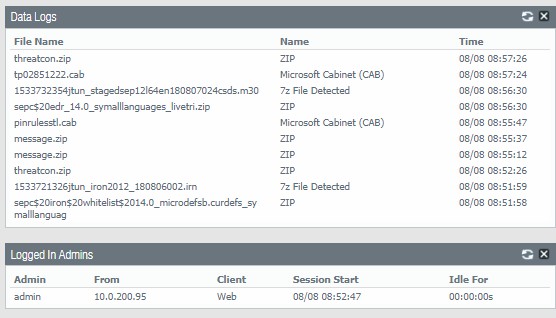
2. You will have Data logs and Logged In Admins information.
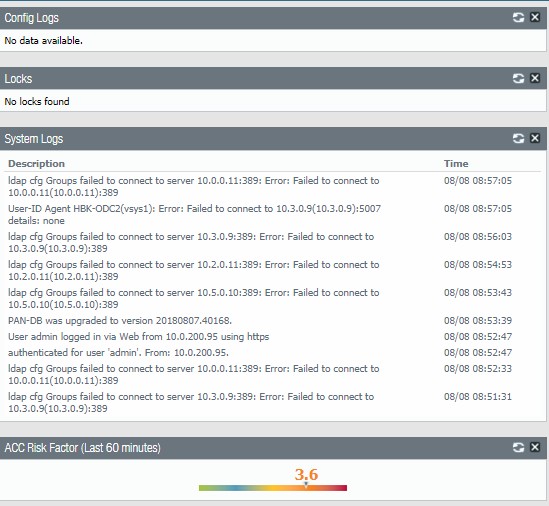
3. You will also have config Logs, Locks. System Logs information.
Problem to establish FTP connection

2. If you see 530 Login authentication failed lik ethis one:

Command: PASS ************
Response: 530 Login authentication failed
Error: Critical error: Could not connect to server

Make sure you have entered correct host name and password.

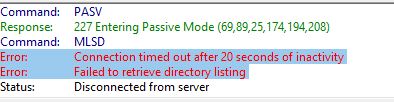
2. If you receive timeout message:

Error: Connection timed out after 20 seconds of inactivity
Error: Failed to retrieve directory listing

Make sure you enter the correct host name, port number, Encryption settings, username and password.

3. Also make sure your firewall doesn’t block the FTP traffic.

Please refer to this link for how to configure FTP client: How to configure FTP client